How to Make a Minecraft Bedrock Skin Pack
A skin pack is a named collection of skin images. It is not a Java resource pack and does not create custom character geometry or publish a Marketplace product.
Follow the real editor
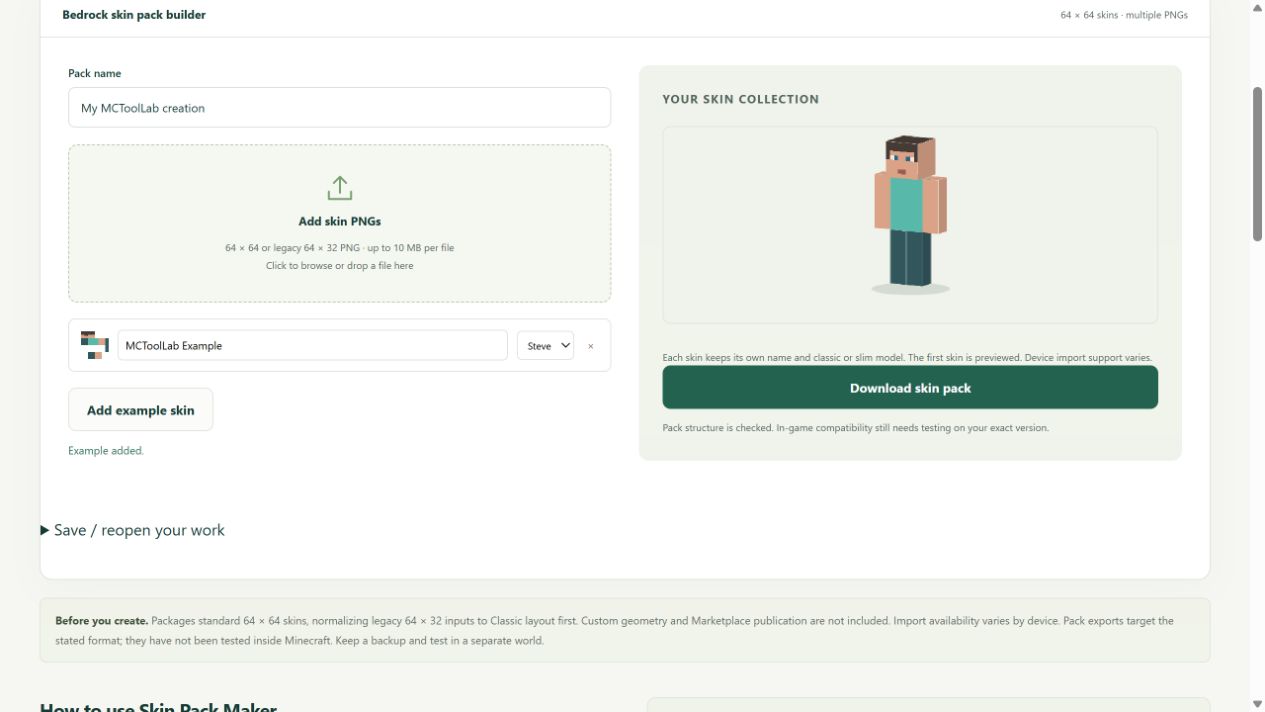
Download original input PNG · Download example output

Guide maintained by MCToolLab · Updated 28 October 2026 · About our guidance and original examples
Steps
- Prepare separate PNG skin files. Use standard 64 × 64 layouts; legacy 64 × 32 images normalize to Classic.
- Add the images to Skin Pack Maker. Give each skin a distinct name so you can identify it later.
- Select Classic / Steve or Slim / Alex separately for every skin. Match this choice to the arm layout in the PNG.
- Download the MCPACK. Save an editable project as well if you want an independent backup of the names, models and source files.
- Open the MCPACK with Minecraft on a device that supports file import, then look for the collection in Dressing Room / Classic Skins.
A two-skin example
Add one Classic skin named Builder and one Slim skin named Explorer. Confirm the models independently, export, and keep the editable ZIP so you can rename or reorder the collection later.
When a skin looks wrong
A narrow or stretched arm commonly indicates a mismatched model. Correct the model in the builder and export again. Use Skin Editor first if the artwork itself needs changes.
Finding the imported collection
Skin packs belong in the skin-selection interface rather than the world resource-pack list. Import support differs by device. A download alone does not prove successful game import.
Supported output and limits
This tool packages supported PNGs into the Bedrock skin-pack format. It does not add skins to Java accounts, create custom geometry or claim console file-import support. Exact device import remains unverified.