How to Design a Minecraft Cape PNG
A cape image is a design file. It does not grant an official account cape, redeem a reward or make other players see it. Decide whether you need a PNG design or a Java elytra replacement pack.
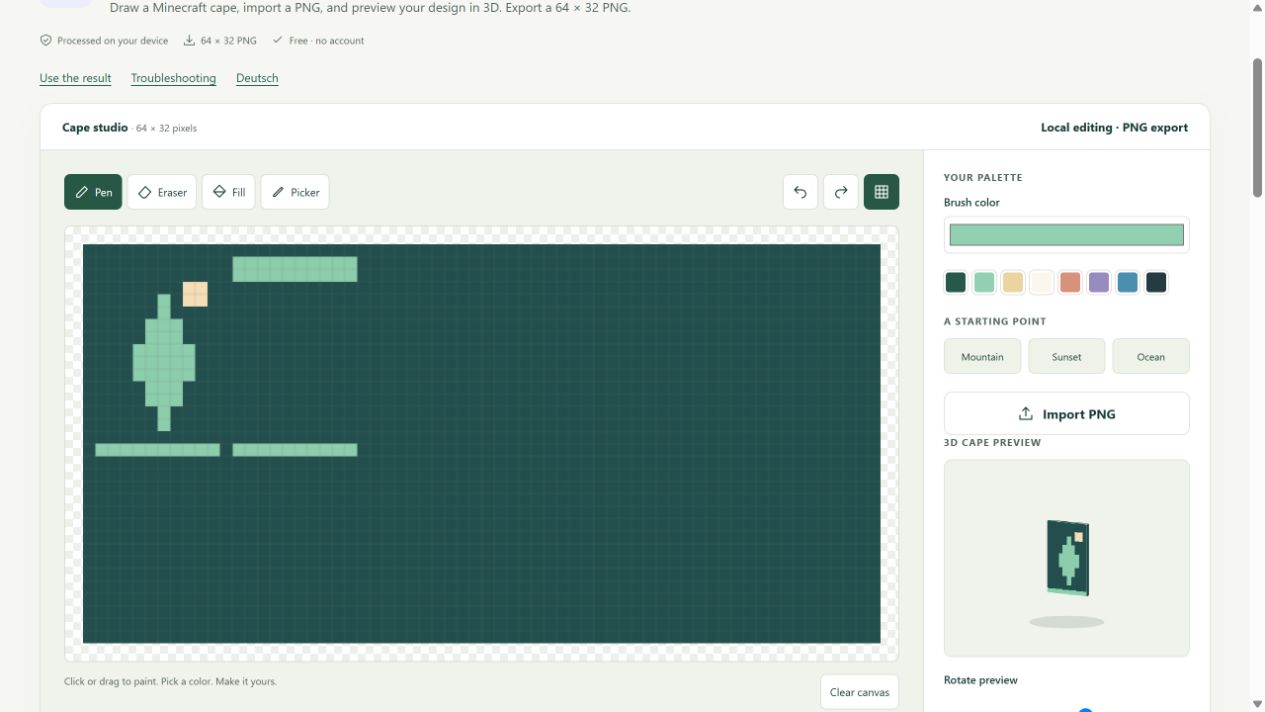
Follow the real editor


Download original input PNG · Download example output
Guide maintained by MCToolLab · Updated 28 October 2026 · About our guidance and original examples
Steps
- Open Cape Editor and start with the original sample or a compatible PNG design.
- Paint the front, back and edge regions in the flat texture. Rotate the 3D preview to check how the faces meet.
- Use Undo to reverse unwanted edits. Transparent pixels remain transparent in the exported image.
- Download the 64 × 32 PNG and keep it as your original design file. Save an editable project if you want to resume the editor settings.
- For a Java elytra replacement, send the design to Elytra Pack Builder, select Cape design layout, inspect the UV mapping and download its resource pack.
Compare input and mapped output
The original example has separate blue back and green front panels. The elytra builder stretches cape faces into the elytra sheet while leaving unused pixels transparent. Both wings share mirrored UVs rather than independent images.
Design versus account entitlement
Importing a PNG into this editor does not change your account or unlock a cape. External cape systems have their own requirements; this site does not ask for Minecraft credentials.
When the design folds unexpectedly
Check whether the uploaded image is a cape layout or an existing elytra layout. Select the matching mode before import. The mapping guide is a preview overlay and is not written into the downloaded PNG.
Supported output and limits
PNG design export and the separate Java elytra texture pack are supported. Official cape ownership, automatic account changes and universal Bedrock cape visibility are not provided. Game rendering still requires validation on the target client.