How to Edit and Combine Minecraft Skins
Use the skin editor for a playable character texture. Use Avatar Maker for a profile picture and Skin Pack Maker for a Bedrock collection; those outputs serve different purposes.
Follow the real editor

Guide maintained by MCToolLab · Updated 28 October 2026 · About our guidance and original examples
Steps
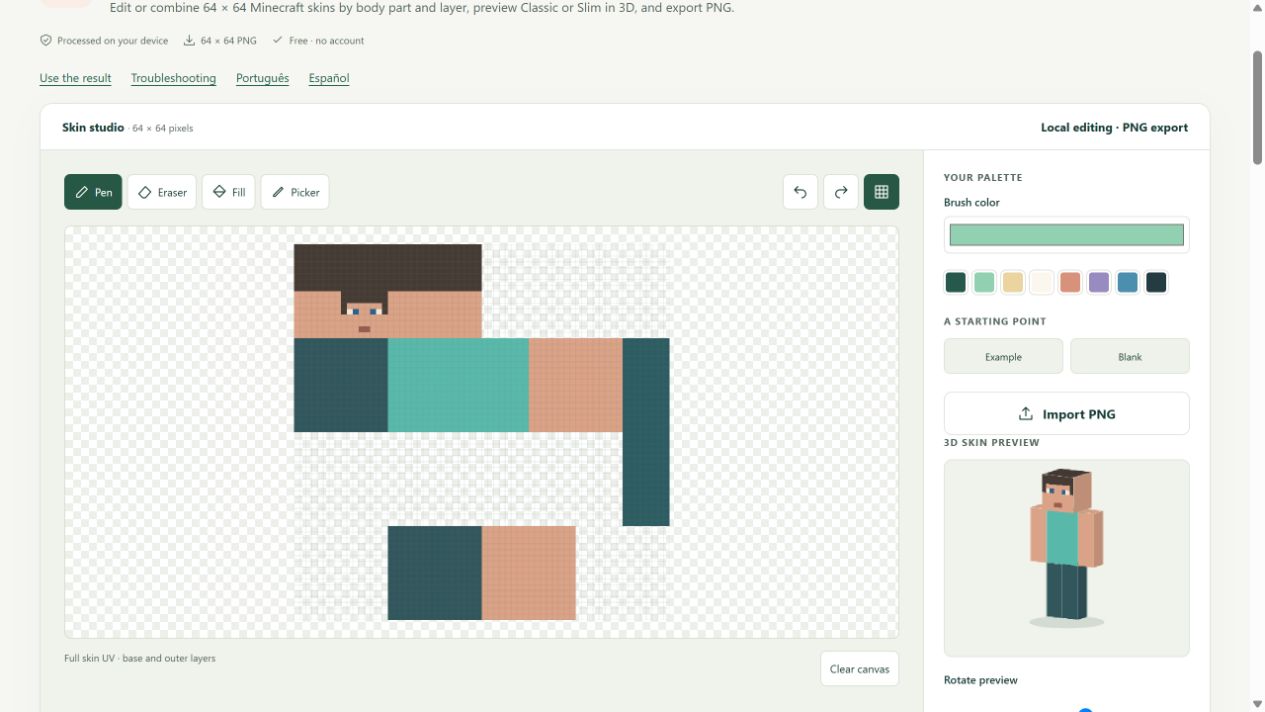
- Open Skin Editor and import a 64 × 64 PNG. Legacy 64 × 32 input becomes a Classic 64 × 64 skin with mirrored left limbs.
- Choose Classic for four-pixel-wide arms or Slim for three-pixel-wide arms. Inspect the 3D preview before painting.
- Select base or outer layer and paint on the flat texture. Hiding a preview layer does not remove its pixels from the PNG.
- To combine skins, import a donor and choose a body part and layers. Arm transfers require the same Classic / Slim model.
- Download the PNG. To continue later, save a browser draft or download an editable project.
A practical combination
Keep the original head and body and copy only the donor legs. Check both the front and back in the preview, then export. This produces one skin PNG; it does not create a collection.
Transparency and undo
Use the outer layer for removable details. Preview visibility and edit protection are separate controls. If a transfer replaces the wrong region, use Undo before continuing.
Using the result
A downloaded image is not automatically uploaded to your Minecraft account. Use your edition’s normal skin-import workflow. For a Bedrock collection, send the PNG to Skin Pack Maker and choose its model there.
Supported output and limits
Standard and legacy skin PNGs are supported. HD skin layouts and direct painting on the 3D model are not included. Files stay on your device; saved browser drafts do not move between domains.